
Get TXT Alerts on your Mobile Phone for Matching Search Items
BisManOnline offers Mobile Messaging and alerts that allow you to receive text alerts or emails directly on your mobile phone whenever new items match the search criteria you have saved.
With Saved Search Alerts, get notified whenever new items get posted!
To setup mobile alerts and notifications, take the following steps:
Enable Mobile Messaging
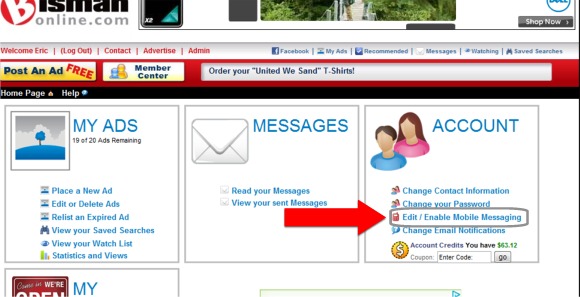
In the BisManOnline Member Center, click on the link titled "Edit / Enable Mobile Messaging" located under "ACCOUNT"
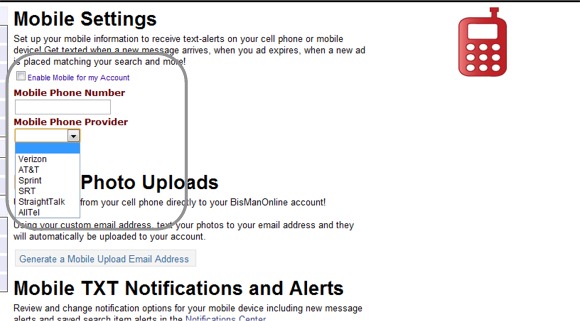
In the Mobile Messaging section, enter your mobile phone details to activate your mobile phone number.
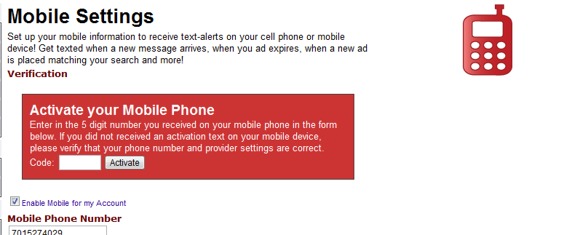
After submitting the form, a text message will be sent to your mobile phone. Once you have received the message, it will contain an activation code to enter to complete your activation.
Once your phone is activated, it is ready to start receiving alerts. To enable alerts for Saved Searches as well as new messages, click "Notifications" on the right hand side of the page. (or, from the member center main page, click on "Change Email Notifications"
Select the check boxes and save your changes.
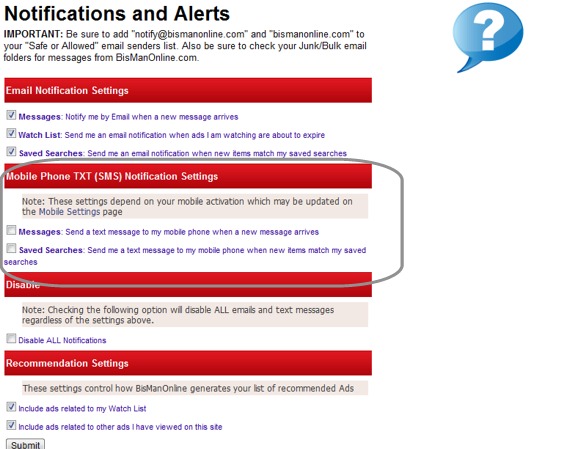
With these settings in place, any existing saved searches you have already enabled alerts on will begin to send text notifications to your cell phone as well.
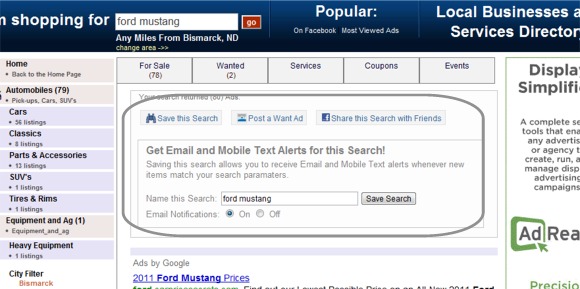
To set up a new search, just use the "I'm Shopping For" search box, or browse categories and select the filters you wish to filter your results.
Once you have a search or set of filters in place, click the "Save This Search" button. Leave "Email Notifications" ON, and click "Save Search"
With Saved Search Alerts, get notified whenever new items get posted!
To setup mobile alerts and notifications, take the following steps:
Enable Mobile Messaging
In the BisManOnline Member Center, click on the link titled "Edit / Enable Mobile Messaging" located under "ACCOUNT"
In the Mobile Messaging section, enter your mobile phone details to activate your mobile phone number.
After submitting the form, a text message will be sent to your mobile phone. Once you have received the message, it will contain an activation code to enter to complete your activation.
Once your phone is activated, it is ready to start receiving alerts. To enable alerts for Saved Searches as well as new messages, click "Notifications" on the right hand side of the page. (or, from the member center main page, click on "Change Email Notifications"
Select the check boxes and save your changes.
With these settings in place, any existing saved searches you have already enabled alerts on will begin to send text notifications to your cell phone as well.
To set up a new search, just use the "I'm Shopping For" search box, or browse categories and select the filters you wish to filter your results.
Once you have a search or set of filters in place, click the "Save This Search" button. Leave "Email Notifications" ON, and click "Save Search"
 Share
Share